A detailed overview for beginners covering commonly asked questions on mixer operation.
Many people are confused by mixers because they are complex devices.
In this article I’ll attempt to answer some beginners’ questions on mixer operation:
• How do I hook up a mixer to the rest of the system? What jacks are best to use?
• How do I use graphic equalizers?
• What are compressors used for?
• How do I use groups?
• How do I set up monitor mixes?
• How do I set up the mixer to add effects?
• What’s a good resource for understanding mixers?
What jacks should I use to connect the mixer to my sound system?
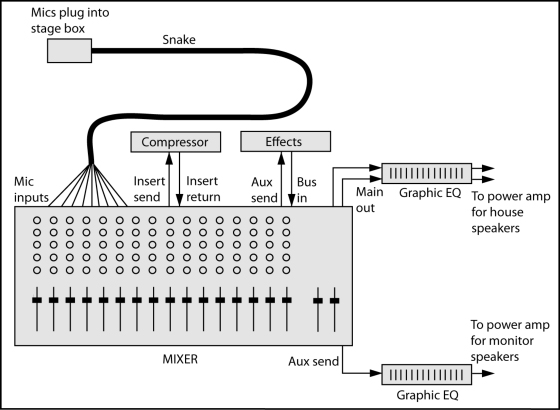
Figure 1. Mixer connections.
• Connect each mic to the stage box (snake).
• Connect each snake XLR connector to each mic input XLR connector.
• Connect the mixer master or main output to your graphic equalizer input, and connect the graphic output to your house power-amp input. If you are not using a graphic equalizer for the house speakers, connect the mixer master outputs to the inputs of the power amp that drives the house speakers.
• If you are recording a board mix of the service or show, connect the mixer REC OUT or TAPE OUT connectors to the recorder line inputs.
Later in this article we’ll cover connections for compressors, the monitor system and effects devices.
Why would I put a graphic equalizer between the mixer and power amps? Isn’t that what the mixer EQ is for?
Mixer EQ affects the sound of each individual instrument and voice, while the graphic EQ affects the sound of the complete mix.
The graphic equalizer is used the flatten the frequency response of the house speakers and room so that the entire sound system is accurate or hi-fi.
One way to set a graphic EQ is to play some reference CDs alternately through high-quality headphones and through the house loudspeakers.
Adjust the graphic-EQ sliders to make the loudspeakers sound like the headphones in their bass-midrange-treble balance.
Here’s another way to set a graphic equalizer.
1. Obtain a measurement microphone, which is an omnidirectional condenser mic with a flat frequency reponse. Put the mic in the center of the audience area.
2. Plug the mic into a real-time analyzer (RTA) set to display 1/3 octave bands.
3. Play pink noise through one set of house loudspeakers (one combination of woofer, midrange and tweeter drivers).
4. On the graphic equalizer, pull down the frequencies that are the highest on the RTA display.
5. Try to get a flat spectrum (equal level in each frequency band) up to 1 kHz, then let the spectrum roll off gradually to about 10 dB down at 10 kHz. This is called a “house curve”.
It’s also common to use a graphic EQ between the mixer’s monitor send (aux out) jack and the power amp that drives the monitor speakers (see Fig. 1).
That EQ is used to reduce the levels of frequencies that feed back. You also can use the graphic EQ to reduce the bassy sound in the monitors caused by microphone proximity effect (the bass boost that occurs when directional mics are used up close).
The monitor signal from the board is pre-EQ, so turning down the bass (low frequencies) on the mic channel does not turn down the bass in the monitor speakers.
That’s where a graphic EQ can help: turn down frequencies a few dB below 200 Hz or so. Then the monitor speakers won’t sound too bassy and muddy.
What’s a compressor for? How do I connect it to a mixer?
A compressor is used to reduce the dynamic range of whatever signal you pass through it. For example, a lead vocalist might suddenly sing a very loud note, blasting the listeners.
The compressor is an automatic volume control - it turns down loud notes so they don’t get too loud. If this isn’t a problem in your venue, you don’t need a compressor.
You insert a compressor in-line with one of the mic channels (see Fig. 1). Find the mic channel on the back of the mixer, and connect its insert send to the compressor input. Connect the compressor output to the insert return on the same mixer channel.
If there is only one insert jack per channel, the tip of the jack is send and the ring of the jack is return, so use a stereo phone plug at the mixer going into two plugs (in and out) at the compressor.
Would I use grouping to combine several channels into one—say, for a monitor for just the vocalists?
The groups are for the house speakers, not the monitor speakers. You might assign all the vocal mics to Group 1 (also called Subgroup 1 or Submix 1). ‘
Then you can control the overall level of the vocals with just the Group 1 fader. Start with the group fader and master fader about 3/4 up (at unity gain, or 0 dB).
You don’t have to use groups, but some people find it convenient.
If you don’t use groups, just assign each mic channel to the stereo mix bus (the master stereo output of the console), and turn down all the group faders because they are not being used.
To confuse things, some consoles use Group 1 and Group 2 as the main stereo output channels. Other consoles have groups plus a separate stereo master output channel.
How do I set up monitor mixes?
The aux knobs in your mixer can be used either for monitor mixes or for controlling the amount of effects on each input channel. First decide which aux channel you want to use for a monitor mix.
You might use several aux channels (aux 1, aux 2, aux 3) to create separate monitor mixes for different performers. Each aux number is a separate monitor mix, feeding a separate monitor power-amp channel, feeding a separate monitor speaker.
Let’s start with just one monitor mix.
Suppose that you’ll create a monitor mix with all the aux 1 knobs. On the back of your mixer, connect the aux 1 send connector to the graphic equalizer (if any) used for the monitor speakers, and connect the graphic equalizer output to your monitor power-amp input (see Fig. 1).
If you are not using a graphic EQ with your monitor speakers, connect the aux 1 send to the monitor power-amp input.
Set all the monitor aux knobs to pre-fader so that the fader for each channel does not affect the monitor level.
What if you need several different monitor mixes? You might use all the aux 1 knobs to set up a monitor mix for the vocalists. Connect aux 1 out to the power-amp channel for the vocalists’ monitor speakers.
Then use all the aux 2 knobs to set up a monitor mix for the drummer. Connect aux 2 out to the power-amp channel for the drummer’s monitor speaker. Use aux 3 for the piano player, and so on.
For example, let’s say the vocalists need to hear only the piano and vocals in their monitor speakers. You would use all the aux 1 knobs across the console to set up a monitor mix for the vocalists. Turn up the piano channel’s aux 1 knob about halfway.
Turn up the vocal channels’ aux 1 knobs about halfway. Turn up the aux 1 master knob (if any) about halfway. Make sure the vocalists can hear the monitor mix, and adjust it according to what they want. Turn up the aux knobs slowly and stay below the feedback point.
Similarly, suppose the drummer needs to hear only the piano and bass. You might use all the aux 2 knobs across the console to set up a monitor mix for the drummer. Turn up the piano channel’s aux 2 knob about halfway.
Turn up the bass channel’s aux 2 knob about halfway. Turn up the aux 2 master knob (if any) about halfway. Make sure the drummer can hear the monitor mix, and adjust it according to what the drummer wants.
How do I set up the mixer to add effects?
As we said earlier, the aux knobs in your mixer can be used either for monitor mixes or for controlling the amount of effects on each input channel. First decide which aux channel you want to use for effects.
Suppose aux 4 is your effects channel On the back of your mixer, connect the aux 4 send connector to the input of your effects device. Connect the output of the effects device to the Bus In or Effects Return connector on your mixer (see Fig. 1).
Another option is to connect the effects outputs to the line inputs of two extra input channel strips on your mixer, and have those be the effects-return level controls.
Set the effects-send (aux 4) knobs to post-fader so that the fader level also controls the amount of effects. Set the dry/wet mix control on the effects unit all the way to wet (100% effect).
For each input channel (vocal or instrument), use the aux 4 knob to set the amount of effects you want to hear on that vocal or instrument.
Note that some mixers have effects built in so you don’t need to make any effects connections.
- Source ( prosoundweb.com)


